Best Free PDF Editing Software in 2026
PDF24 Creator and PDFgear are the best all-round free PDF editors in 2026, while Sejda, PDF Candy, and Apple Preview are best for quick or light jobs.
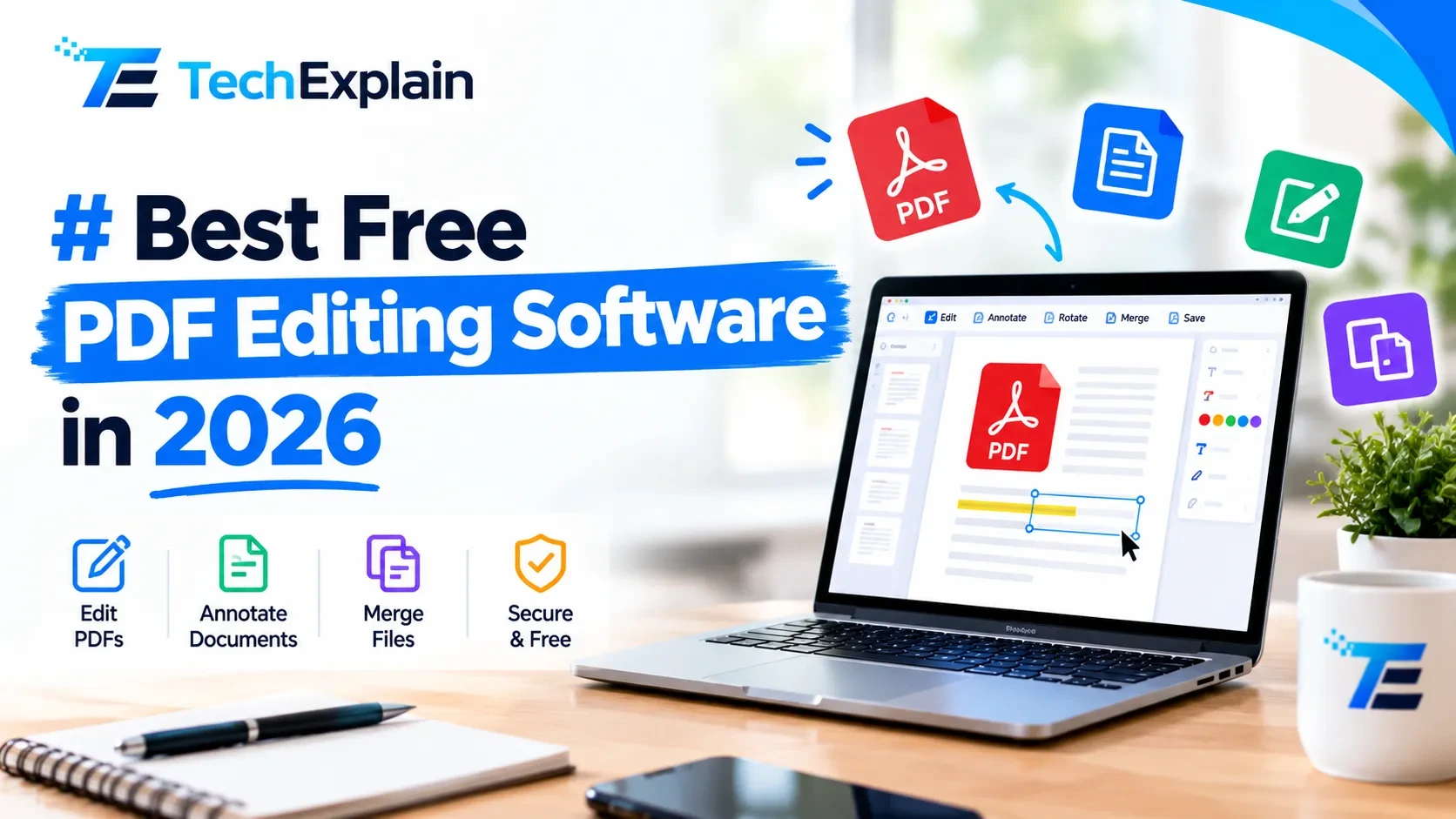
The best free PDF editing software in 2026 offers zero-cost text editing, form-filling, page management, and conversion tools without intrusive watermarks or mandatory subscription paywalls.
In 2026, the best free PDF editor will largely depend on what you want to achieve with it. For the majority of people, PDF24 Creator and PDFgear can be considered the best options, as both provide numerous features while being completely free. For quick fixes directly in your web browser, Sejda and PDF Candy will be the perfect choice. In case you use a Mac, there is an application available for you too: Apple Preview that comes preinstalled in OS X.
Almost everyone has encountered PDF files in their daily life. You receive invoices, fill out applications, submit educational documents, sign various contracts, and read manuals in this format. PDF file format was created in such a way that its contents are consistent on any device. That is the reason why PDF files are so difficult to edit. But when you encounter some typos or have to sign an agreement, you suddenly find yourself in need of using an editor. Applications like Adobe Acrobat are capable of doing everything I mentioned before, but most people do not want to pay for something that they will use just once. Luckily, the quality of the free editors has improved a lot, and now they can offer such advanced features as OCR and even an AI assistant.
What Does "Free" Really Mean?
But before you proceed to installing any software, it would be useful to understand that "free" is not always "free". There are tools that are really free and have no limitations on daily usage. But there are also those that offer free usage within one hour or a few tasks per day. Some allow you to edit a document but watermark your file after saving.
A decent free PDF editor should perform at least four main functions. These are fast loading, comments and highlighting, basic editing of text and images, and handling of simple page operations like merging, splitting, and rotation. Everything else, like OCR scanning and signing, would be just a plus.
Speaking of security, if you upload a document to a website, it remains stored on their server until you decide to delete it. This is acceptable for, say, a school bulletin, but think twice before uploading such sensitive documents like a bank statement or ID card. With a desktop application, all your data remains stored locally.
Quick Comparison Table
Here is an overview of the major differences between the alternatives presented. Check out the following sections to know more about each.
Tool | Best for | Works on | Main drawback |
PDF24 Creator | All-round free use | Windows desktop | Basic layout editing |
PDFgear | Free tools plus AI | Computers and phones | Not a deep editor |
Sejda | Editing existing text online | Browser and desktop | Limits on daily tasks |
PDF Candy | Quick one-off jobs | Any web browser | Free limits and uploads |
PDF-XChange Editor | Power users | Windows | Watermark on some features |
LibreOffice Draw | No limits, no watermark | Windows, Mac, Linux | Layout can shift |
Apple Preview | Light edits and signing | Mac | Cannot rewrite existing text |
The Best Free PDF Editors in 2026
1. PDF24 Creator
PDF24 Creator is a software application that several commentators say is the best PDF tool that is free of charge. This software has functions such as editing, merging, converting, and compressing files and can be used for electronic signing and text recognition. The major strength of this software is that it is comprehensive. One does not have to visit five different sites to achieve one thing; all the tools one needs are in one site, and the software is free.
There are a few limitations to this software. First, it is primarily designed for use on the Windows platform. Second, its editing capabilities are more suited for editing than designing files.
2. PDFgear
PDFgear is considered a free program that makes other paid programs appear costly. It provides features of editing, OCR, converting, and AI free of charge and works on multiple platforms. Reviewers state that it places no watermark on the document and imposes no strict limitations on usage of the tools.
This is not an advanced editor; therefore, if your task requires the complete redesign of the page, it will be easy to find it simplistic. However, if you are just looking for a tool to fill out forms, type some text, merge documents, and convert a PDF file into a Word one, it is impossible to find anything better.
There is only one problem though – you have to edit a text line by line. This is great for correcting spelling mistakes and dates but it can take time to rewrite an entire paragraph and even make spacing problematic. There is a limit to the number of tasks, file size, and page count when using the free version. This is acceptable for one-time use but not for every day.
3. PDF Candy
PDF Candy is a browser-based toolkit that is ideal when you would like to accomplish a single task fast, such as compression of a bulky file, document conversion, or combination of two PDFs.
There is no requirement to install anything, thus making it accessible from most computers, including public/shared computers where installing additional programs is not possible. The free version has certain restrictions regarding the size of the file and number of tasks that can be performed at once. Furthermore, being an online tool, your file will go to a server.
4. PDF-XChange Editor (Free Version)
PDF-XChange Editor is one of the most powerful PDF editors available for Windows OS. Its free version can surprise by its capabilities – it provides many markup tools and text recognition capabilities. If you prefer a lot of toolbar icons, you will definitely like it.
What you should pay attention to is the fact that sometimes some extra features leave a watermark in your document upon saving it. So before working for an hour on your document, try using only a single page. Also, it will take some time to get used to such a large number of buttons on the interface.
5. LibreOffice Draw
LibreOffice is an open source office suite, and its Draw application can open the PDF document and enable editing of the text and shapes in the document. There are no limitations to the daily use of this program, and no watermark will appear, which is one great advantage of it.
The disadvantage of using Draw is that PDF files are not made for editing and may experience certain changes, such as moving of the fonts and lines due to the complexity of layout in some pages.
6. Apple Preview
Since you are using a Mac, you have a good editor already in your system. The Apple Preview editor allows you to highlight the text, make some notes, complete the form, sign the document, and move pages around. However, it does not allow you to modify the text that you enter into the file.
7. Foxit PDF Reader
Foxit PDF Reader is a free and fast reader, as well as a clean one. Newer versions offer the service of a built-in AI assistant, which can sum up and explain even lengthy documents; this can be useful if you are working with a thick report. The program is more of a reader with great markup capabilities rather than a fully-fledged editor.
Other Useful Mentions
DocHub is a great option to go for if you are interested in signing your documents and sending them out, and also if you need an application that works together with cloud-based services. Canva will work well for those people who create designs using templates, but it is not a fully-fledged PDF editor.
Which Free PDF Editor Fits You?
Different readers need different things, so here is a simple way to match a tool to your situation.
Whether you are a student who has to fill out forms, combine notes, and compress files before uploading them, PDFgear or PDF24 Creator would provide you with most of the necessary functions. In case you are an office worker who works with contracts and reports a lot, then PDF24 Creator or PDF-XChange Editor will give you more flexibility. Should you have to edit PDFs once in a while, Sejda through a browser would be the easiest route since you don’t have to download anything.
In case you use a Mac, you should start off with Apple Preview and proceed to PDFgear should you require more capabilities. Individuals concerned about their privacy should choose desktop applications that work offline rather than upload their files to web pages. Those who sign documents primarily can benefit from using either DocHub or the signature function in PDF24 Creator and PDFgear.
How to Choose the Right Free PDF Editor: 5 Simple Questions
Answer these five questions prior to selecting the right tool, and you'll be able to make up your mind easily.
First, what is the main action you perform with the file? If you simply comment and sign a document, any tool would fit perfectly well. If you need to modify the content, go for the tool that allows you to edit text, such as Sejda, PDF-XChange Editor, or LibreOffice Draw.
Second, how frequently will you use it? In case of an occasional task, using an online tool seems more convenient, but when dealing with daily operations, you should better go for the desktop tool.
Third, how confidential is your file? When working with confidential or private information, save the file on your PC and choose the tool that works offline.
Fourth, on which device are you working? Make sure the tool runs on your platform. Some of the tools were designed specifically for Windows, others – for Mac, and others work in all browsers.
And fifth, are you able to cope with its limitations? All free tools have some trade-off; it may be a limitation of tasks per day, watermarks, or the lack of features. Choose the one you don't mind dealing with.
Safety Tips Before You Download
Free software makes an ideal hideout for bogus installers, and here are several tips to avoid being infected by one. Firstly, always download from the official site of the particular application, rather than from any download pages you happen to stumble upon. Don't trust ads telling you about some free PDF editor and encouraging you to download the app from dubious sources. Secondly, make sure that you have a copy of your initial PDF document, just in case. Also, when dealing with sensitive documents, choose offline solutions over online ones.
It may also be wise to try out a new editor on an insignificant document. In two minutes, you will see if there is some watermark, font change, or paid feature in the program.
Frequently Asked Questions
Can I edit a PDF for free without a watermark?
Yes. PDFgear, PDF24 Creator, and LibreOffice Draw are examples of some programs that leave the files clean. Certain software will put a watermark on particular features; hence, it's advisable to try it out first.
Can I edit a PDF in Microsoft Word?
Yes. You can import a PDF document using Word and convert it to an editable one, and then save it as a PDF again. There might be some changes in formatting, so make sure you review it first.
Are online PDF editors safe?
The most popular ones work well with regular files, but your file is stored on a server. When it comes to personal files such as identification documents, agreements, or bank information, a desktop program is better suited.
Is Adobe Acrobat free?
However, the free Adobe Reader allows one to view the document but not edit it. This is the reason why a number of people search for other free options.
Can I edit a scanned PDF for free?
However, since a scanned PDF document is simply an image of text, text recognition becomes necessary, also known as OCR. Many free software packages provide this function, such as PDF24 Creator, PDFgear, and PDF-XChange Editor.
What is the best free PDF editor for beginners?
The programs PDFgear and PDF24 Creator are quite simple to learn, and Sejda is user-friendly for those who want to use browser-based software.
Final Thoughts
You do not have to spend money on buying software when all you need is to correct a spelling mistake, fill out a form, or combine two PDFs. The most suitable free PDF tools are likely to be PDF24 Creator and PDFgear for general purposes, Sejda and PDF Candy for doing tasks quickly online, and Apple Preview for working with PDF files on Mac computers. Just bear in mind that there is no such thing as a perfect free solution, so be careful and use the right software for each particular task.
Share this article
Related Articles

Vibe Coding: How AI Is Changing the Way We Build Software
Vibe coding uses AI tools to create software through simple text instructions. Explore how it works, popular tools, benefits, limitations, security risks, and tips for beginners.
How to Choose the Right Antivirus Software in 2026
Defender is enough for most Windows 11 users; pay for a suite only if you need extras.
What Is SaaS (Software as a Service)? Explained Simply
SaaS lets you use software online through a subscription instead of installing and maintaining it yourself.