
How to Fix a Slow Internet Connection: 10 Proven Tips
This guide shares 10 simple, tested tips to find out why your internet is slow and fix it fast.
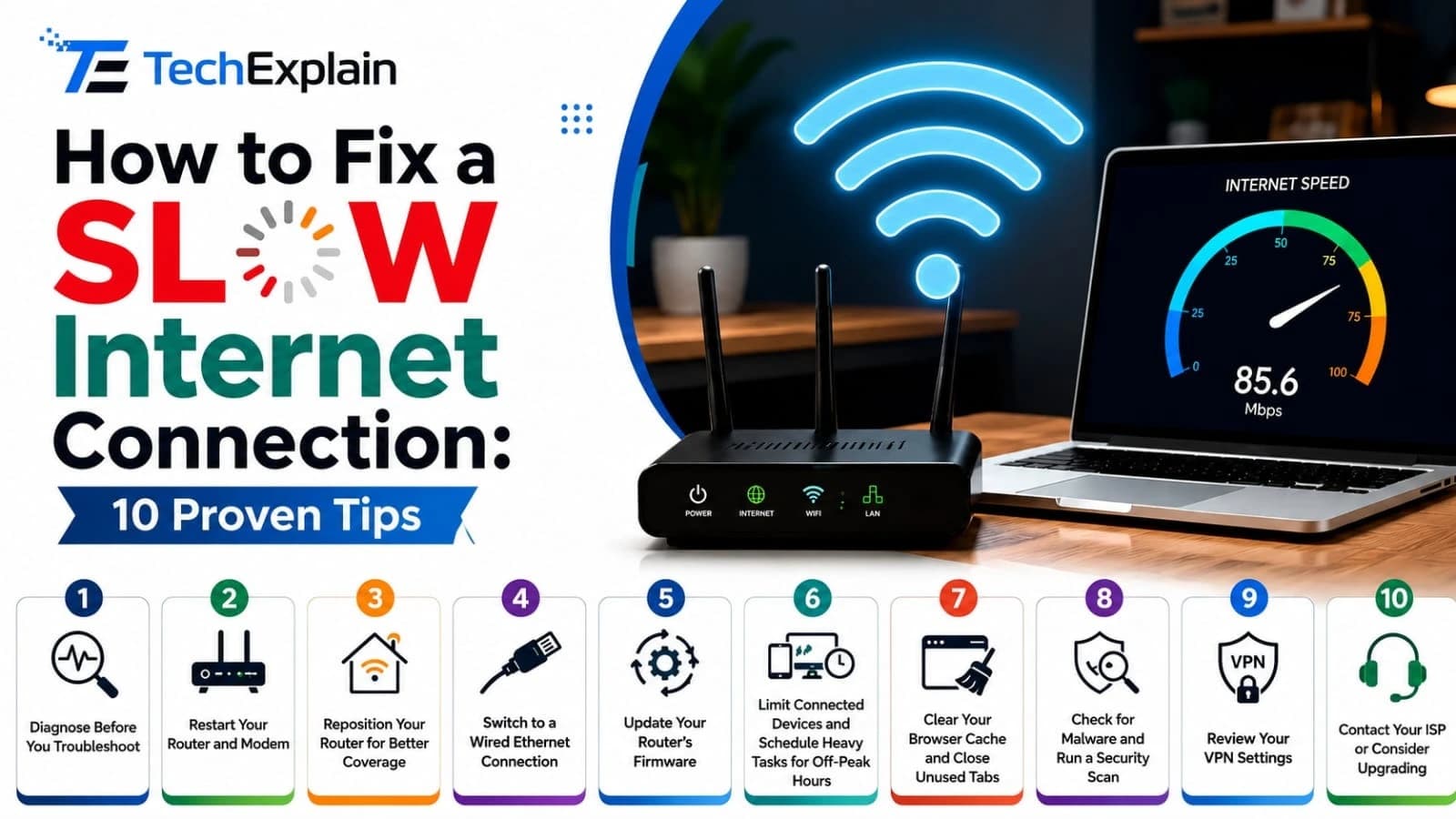
To fix a slow internet connection quickly, run a speed test, restart your router and modem, and check your device placement. If problems persist, try switching to a 5 GHz Wi-Fi band, clearing background apps, or connecting via an Ethernet cable.
A slow internet connection makes routine actions such as opening a page, taking part in a video conference, and even watching videos extremely challenging. When one wants to work from home, play some games, or simply entertain himself or herself by watching his or her favorite series, a slow internet connection can totally ruin one's day. Fortunately, almost all reasons why a person might face problems with his or her connection are well-known, and they all can be easily solved either without contacting a specialist or purchasing a costly package. In this article, you will get ten tested and proven ways to diagnose and solve slow internet connection issues. Here, there are both short-term solutions that one can apply in less than a minute and long-term solutions, which make one's network run faster forever. Regardless of whether your issue is caused by the router, poor Wi-Fi, some overloaded device, or your Internet Service Provider (ISP), here you will find how to diagnose the reason and fix it.

1. Diagnose Before You Troubleshoot
Everyone rushes to restart the equipment or call their ISP, but the right approach would be to identify where the bottleneck is coming from. Try running a test at the speed at the modem, at the router, via Wi-Fi, and then at the actual device that causes problems. In such a way, one will get a better understanding of the actual cause, whether it is their equipment, Wi-Fi, a particular device, or ISP. Compare the results of a speed test to the advertised speed of the package from your ISP. If the results are significantly lower than what you paid for, then there is a good chance that something in the system that is not your equipment causes problems – for instance, congestion at the neighborhood node. It may be helpful to run tests at different times of the day, since the speeds often decrease in the evenings due to higher load.
2. Restart Your Router and Modem
It may seem too easy for it to be effective, but resetting your network hardware helps solve many connectivity problems. The router and modem are computers, and just like any other computer, they accumulate some memory and have software problems, which affect their performance. When you reset them, turn off the router and modem by unplugging them from the wall socket for at least 30 seconds before plugging them back in. This clears the cache and creates a new connection to your Internet service provider. Many specialists advise resetting your hardware every two to three months.
3. Reposition Your Router for Better Coverage
The positioning of your router makes a much greater difference when it comes to speed than people think. WiFi signals get weaker the farther they have to travel through walls, floors, and furniture, so a router sitting in the closet or corner of the basement will have trouble sending out a strong signal around your entire house. In order to have the best signal possible, position your router somewhere in your house that is centralized and elevated and that is not behind a lot of walls or surrounded by big metal things like appliances and filing cabinets. Make sure your router is also away from anything that might interfere with it because there are many devices that send off a signal on the same frequency as your router.
4. Switch to a Wired Ethernet Connection
Should your Wi-Fi still fail to perform well even after moving your router, a way to ensure that your connection is at its best is to connect your computer straight to your router using an Ethernet cable. An Ethernet cable connection does away with all kinds of issues related to interference, signal strength, and bandwidth congestion due to having many devices using the same wireless connection. With most homes, a normal Cat5e cable will be enough to offer you speeds of 1 Gbps – more than what you need to do basic internet-related activities.
5. Update Your Router's Firmware
However, most of the time, firmware updates are released by router companies that help them correct some bugs, patch security flaws, and enhance the performance of the router. This is why it is important to note that many routers do not update automatically and thus may have out-of-date firmware running on them, which may actually slow down your speed. You can log into your router's administrative console using a web browser with the IP address of the router to check for any updates.
6. Limit Connected Devices and Schedule Heavy Tasks for Off-Peak Hours
All the gadgets connected to your network, even those that are not being used, use a portion of your total bandwidth. Gadgets such as smart TVs, gaming consoles, mobile phones, computers, and smart home gadgets like thermostats and security cameras will all use some amount of your bandwidth. Having multiple devices connected to your network at the same time can cause congestion and slow down your internet. This is much like having multiple vehicles trying to access one road; your internet becomes congested. Unplugging devices when they are not in use and configuring QoS on your router, which will ensure priority use of bandwidth for certain processes such as video calls, will help you to achieve faster internet during peak times.
7. Clear Your Browser Cache and Close Unused Tabs
The problem may also lie not with your network, but rather with your browser. Your browser keeps many types of cached files, cookies, and other information that may take up too much space and slow down the process of loading pages. Cleaning your cache and your history is always recommended to save memory. Closing browser tabs and background programs that you do not use will also help you because your computer keeps consuming memory even with non-active tabs.
8. Check for Malware and Run a Security Scan
Unwanted malware or other programs in the background can quietly hog your bandwidth, reroute your data flow, or flood your computer's CPU with tasks, all of which result in slow connectivity. Performing a complete system check using reliable antivirus or antimalware tools will allow you to detect and get rid of any hidden threats affecting the speed of your internet connection. This is particularly important in case you have observed some strange behavior from your computer recently.
9. Review Your VPN Settings
VPNs are extremely useful for privacy and security reasons, but they can also negatively affect your connection by going through one more server and adding encryption during the process. If you use a virtual private network and feel a considerable decrease in speed, you should connect to a server that is located near you, as the distance between servers influences the performance of the connection. The number of users on a server is also important; if a server is overloaded with the number of users, its performance will be lower than that of a lightly loaded server.
10. Contact Your ISP or Consider Upgrading Your Plan
After completing the troubleshooting tips listed above and still experiencing a poorly performing connection, it could mean that the problem is related to either your internet plan or the infrastructure of your Internet Service Provider in your region. You should contact your ISP in order to check if everything is working fine and if there aren’t any outages or any maintenance work currently being done to fix your connection. You should also ask your provider if your current internet plan is appropriate for your household needs since streaming, remote work, and gaming all need more bandwidth than basic surfing and emailing.
Quick Reference: Troubleshooting Steps at a Glance
Step | Action | Best For |
1 | Run a speed test | Establishing a baseline before troubleshooting |
2 | Restart router and modem | Clearing temporary glitches and cache buildup |
3 | Reposition your router | Improving Wi-Fi coverage and signal strength |
4 | Use a wired Ethernet connection | Maximum speed and stability for key devices |
5 | Update router firmware | Fixing bugs and security issues |
6 | Limit connected devices | Reducing network congestion |
7 | Clear browser cache | Speeding up individual device performance |
8 | Run a malware scan | Removing hidden bandwidth drains |
9 | Adjust VPN settings | Reducing VPN-related latency |
10 | Contact your ISP or upgrade | Solving provider-side or plan-related issues |
Final Thoughts
The problem of having slow internet speed does not usually come from one cause only, and that is why a systematic method should be used. The first step in this case would be doing simple procedures such as rebooting and changing the position of your router. If there is no improvement after that, then you may have to resort to other methods, including doing some updates to the firmware or getting an upgraded internet package. You should also run a speed test at each stage to see how you are performing.
If the internet is still very slow after attempting all of the above steps, then perhaps it is time to look into other options of the internet available in your locality, including fiber optics, cable internet, and even fixed wireless connections.
Frequently Asked Questions
Why is my internet suddenly so slow? A sudden drop is generally due to one of a few possible reasons, like too many connections simultaneously, an outdated or overheated router, downloading or updating something in the background, Internet service provider congestion when there are many users online, or using a virtual private network which routes your connection through another location far away.
How do I know if the problem is my Wi-Fi or my ISP? Plug in the device straight into the modem/router through the Ethernet cable and check the speed of the connection. If the speed of the wired connection is consistent with the paid speed and the Wi-Fi speed is slow, then the problem might be in the placement of the router or the surrounding wireless environment.
Does restarting my router actually help? Yes, because it flushes the router's cache and memory, fixes any small software errors, and makes it form a new connection with the ISP. Many professionals suggest that you should restart your router every two to three months, even if there are no issues at all.
Can too many devices really slow down my internet? Absolutely. Each one of those connected devices will use up some of your bandwidth, whether they are actively in use or not. Video streaming services, smart home appliances, and even background applications use up data on the network.
Is a VPN always going to slow down my connection? Not necessarily, but it usually does to some extent. A virtual private network encrypts your data and sends it via one more server, thus making the whole process longer. Using a closer server and not using overloaded servers can help reduce the delay.
When should I upgrade my internet plan instead of troubleshooting further? If you have tried all the above remedies and you are still getting slow speeds from your wired connection test, and you find that your internet plan is not able to cope with the usage you have been having lately (streaming, gaming, working from home), then it is time to consider changing your plan or your internet service provider.
Share this article
Related Articles
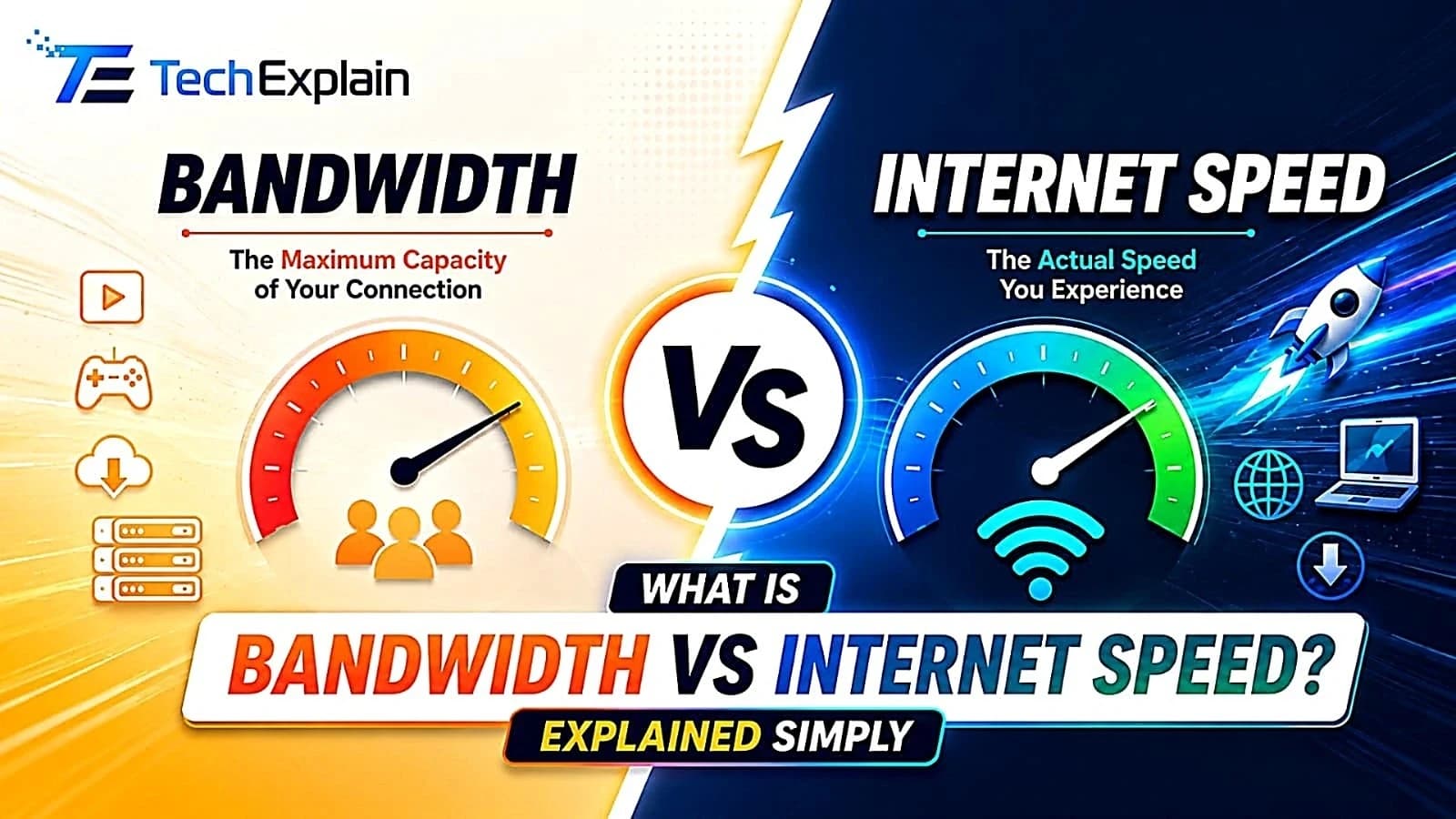
What Is Bandwidth vs Internet Speed? Explained Simply
Bandwidth is how much data your connection can carry, while speed is how fast that data actually moves.
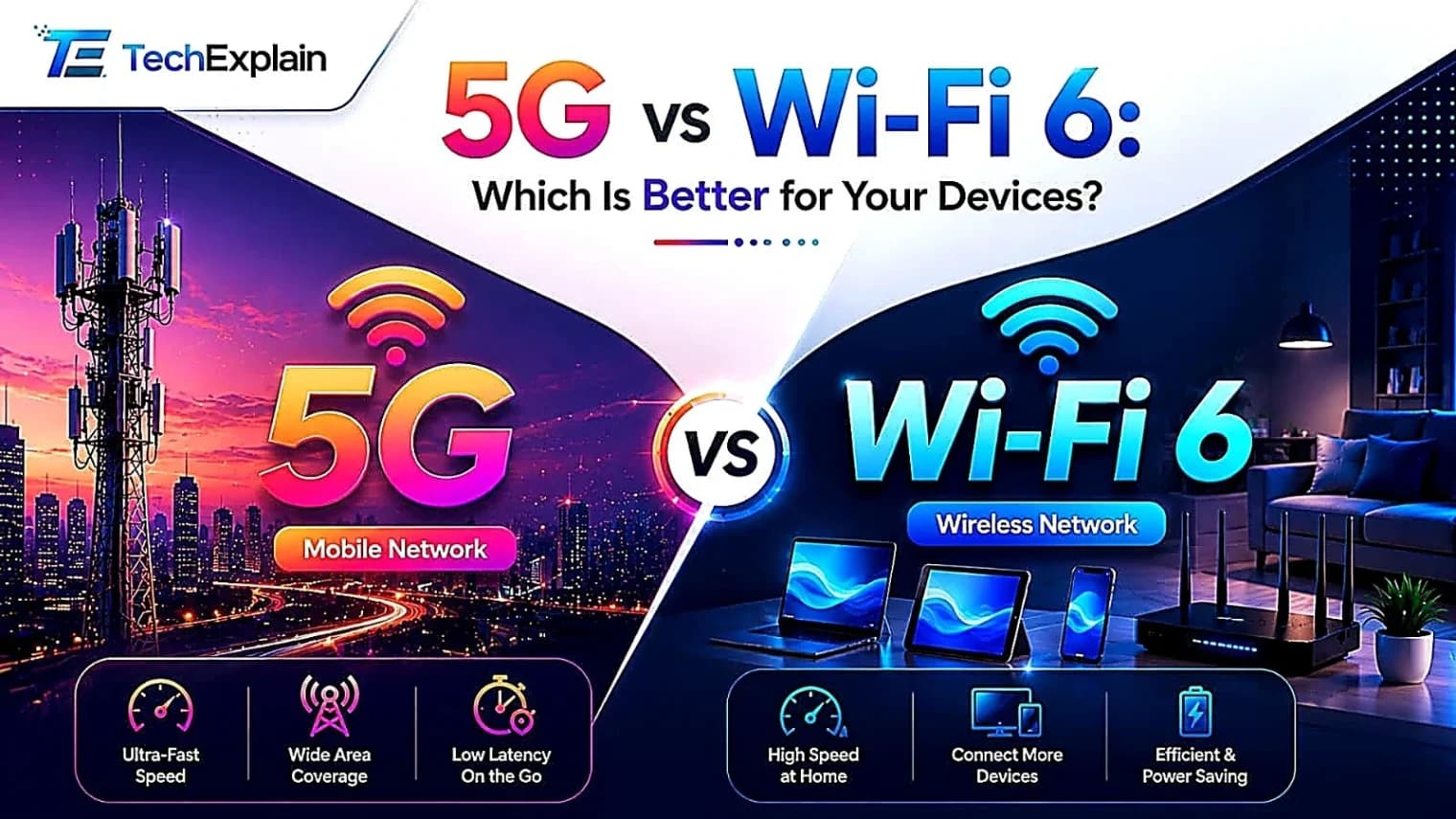
5G vs Wi-Fi 6: Which Is Better for Your Devices?
5G is fast internet for outdoors and travel. Wi-Fi 6 is fast internet for home and office. Using both together works best.
Wi-Fi vs Ethernet: Which Connection Is Faster?
A simple guide comparing Wi-Fi and Ethernet to help you understand which connection is faster and when to use each one.